Exams
-
Exams: How to Prepare for my Final Exam?
Introducing Honorlock for Final Exams
To ensure exam integrity and a secure testing environment, we are implementing Honorlock for all final exams. This tool creates a controlled online testing environment that verifies identification and helps prevent cheating and unauthorized access to external resources during your exam.
What Is Honorlock?
Honorlock is a browser extension designed specifically for online testing. When you use it to take a StraighterLine final exam:
- You must use a laptop/desktop computer with Chrome browser
- You must verify your identity through photo and ID verification
- You cannot open unauthorized websites, tabs, or applications
- You cannot copy/paste, print, or take screenshots
- You cannot use a second monitor
This ensures that all students are tested under the same secure conditions.
Honorlock DOES NOT
- Have a live proctor watching you
- Prevent you from accessing your course—you can still access your course materials and eTextbooks as all exams are open book
- Require an exam password
Why StraighterLine Is Adding This
Our goal is to maintain the highest standards of academic integrity while ensuring a fair testing experience for every student. Honorlock helps protect the value of your work and the credibility of your course achievements.
When Will This Be Required?
Starting in early February 2026, all quantitative final exams in StraighterLine courses will require Honorlock. You will not be able to begin your final exam without first installing the browser extension in a Chrome browser.
How to Start Your Exam with Honorlock
- Navigate to your final assessment in this course.
- Once on the exam page, you'll see a prompt to download the browser extension before you can continue. Check the checkbox and click the Get Started button.
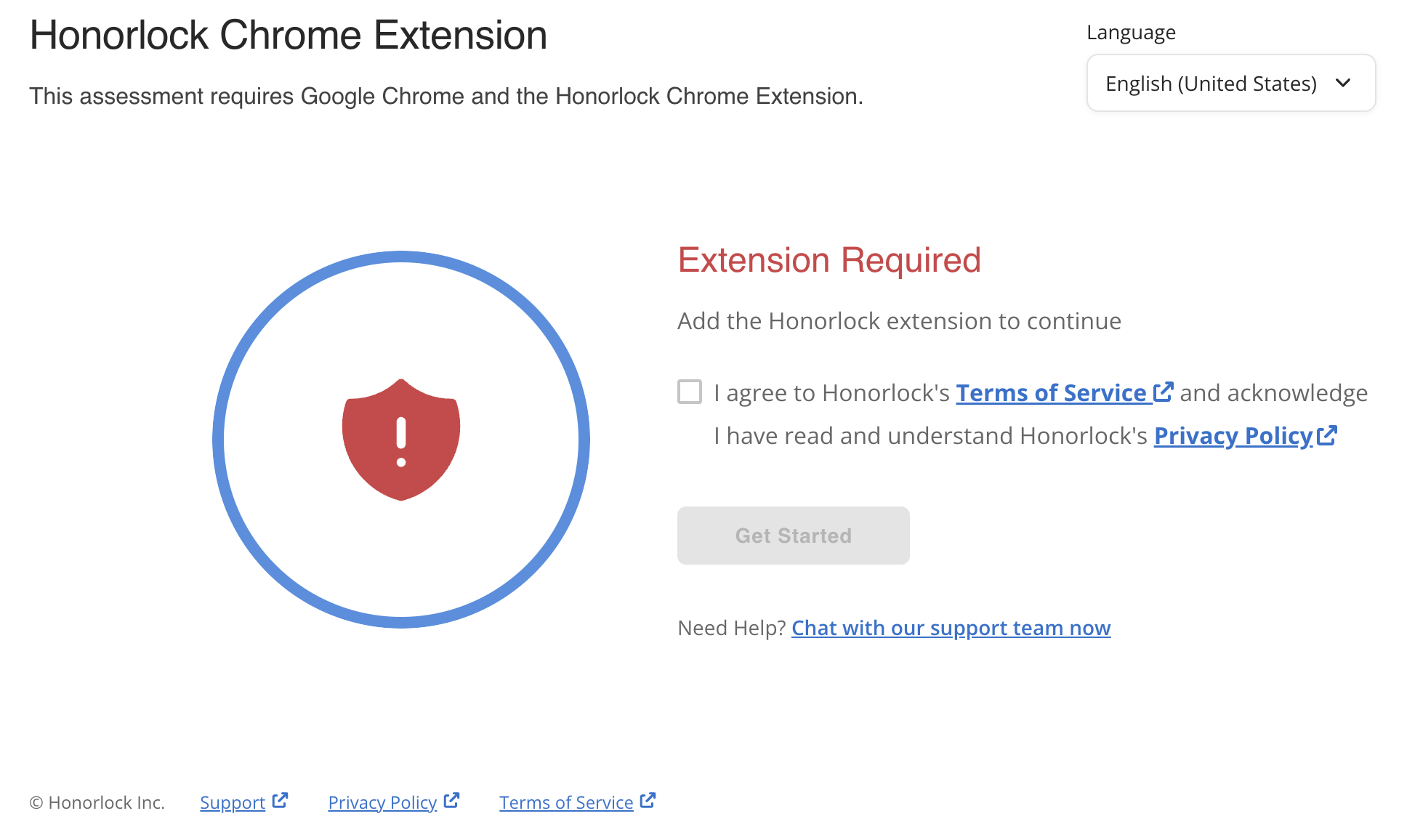
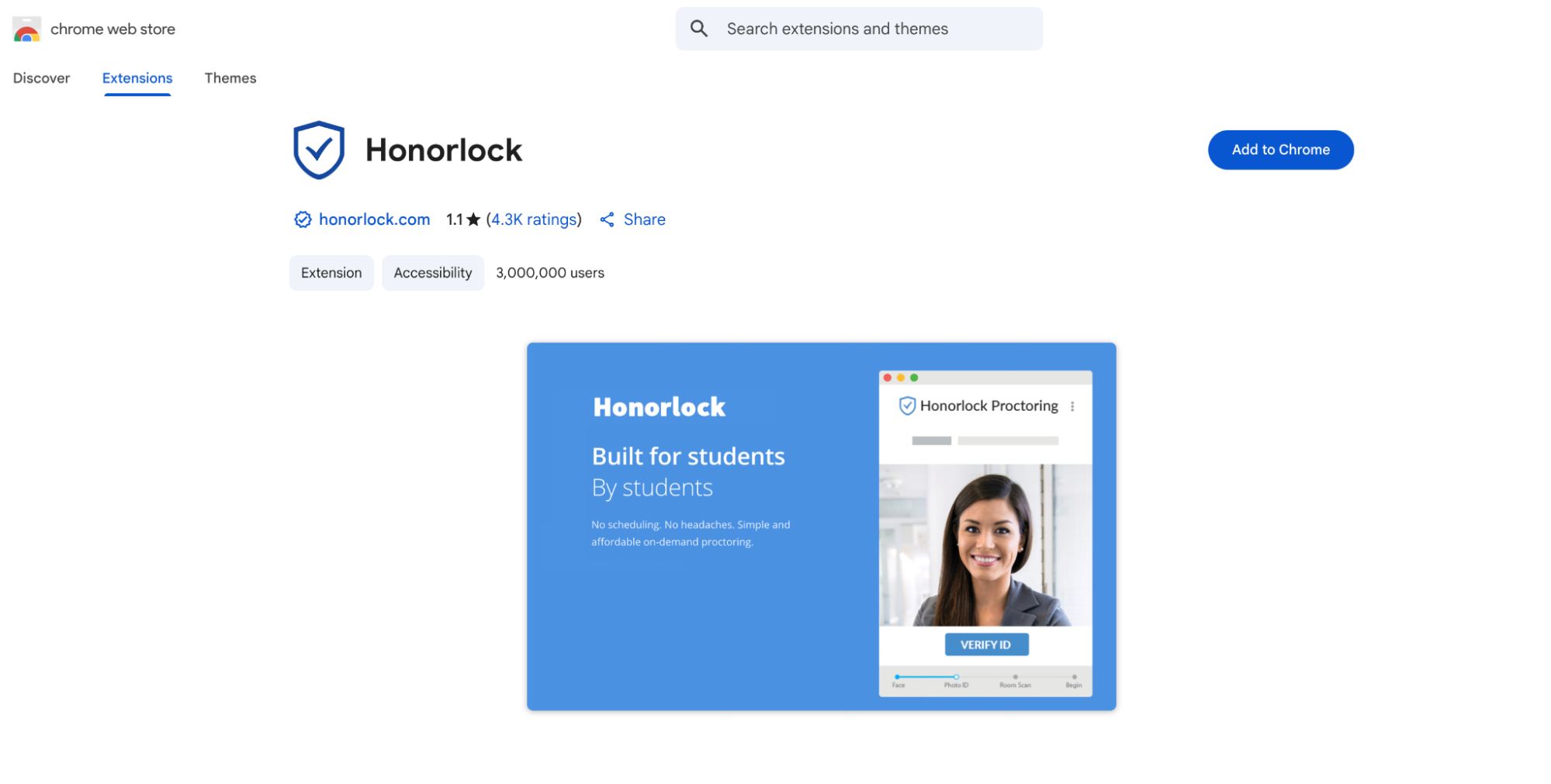
- You'll be redirected to the Chrome Web Store to add the extension to your browser (if using the Edge browser, it will prompt you to add the Chrome extension which it uses by default). Click the Add to Chrome button.
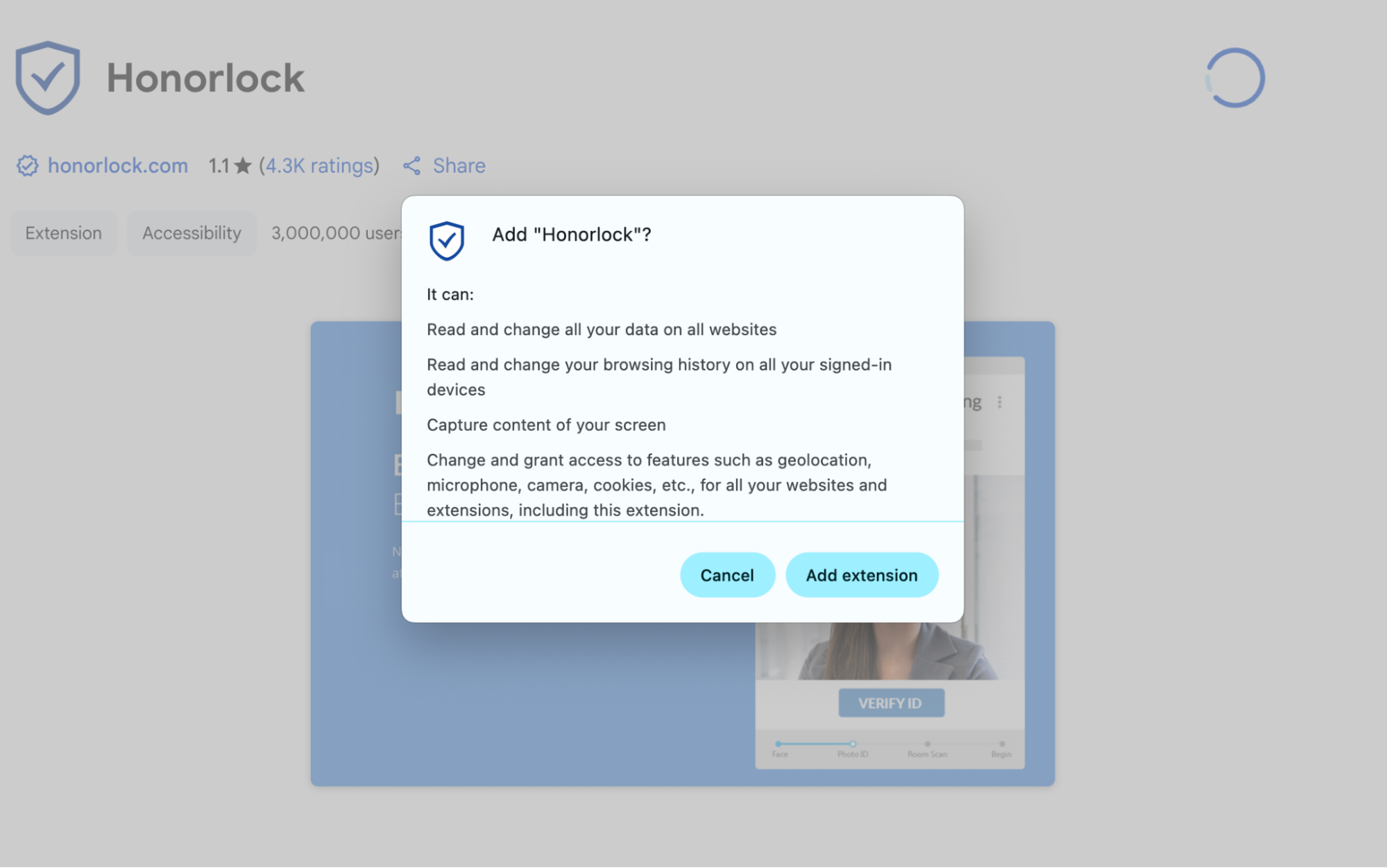
- On the following modal, click Add extension.
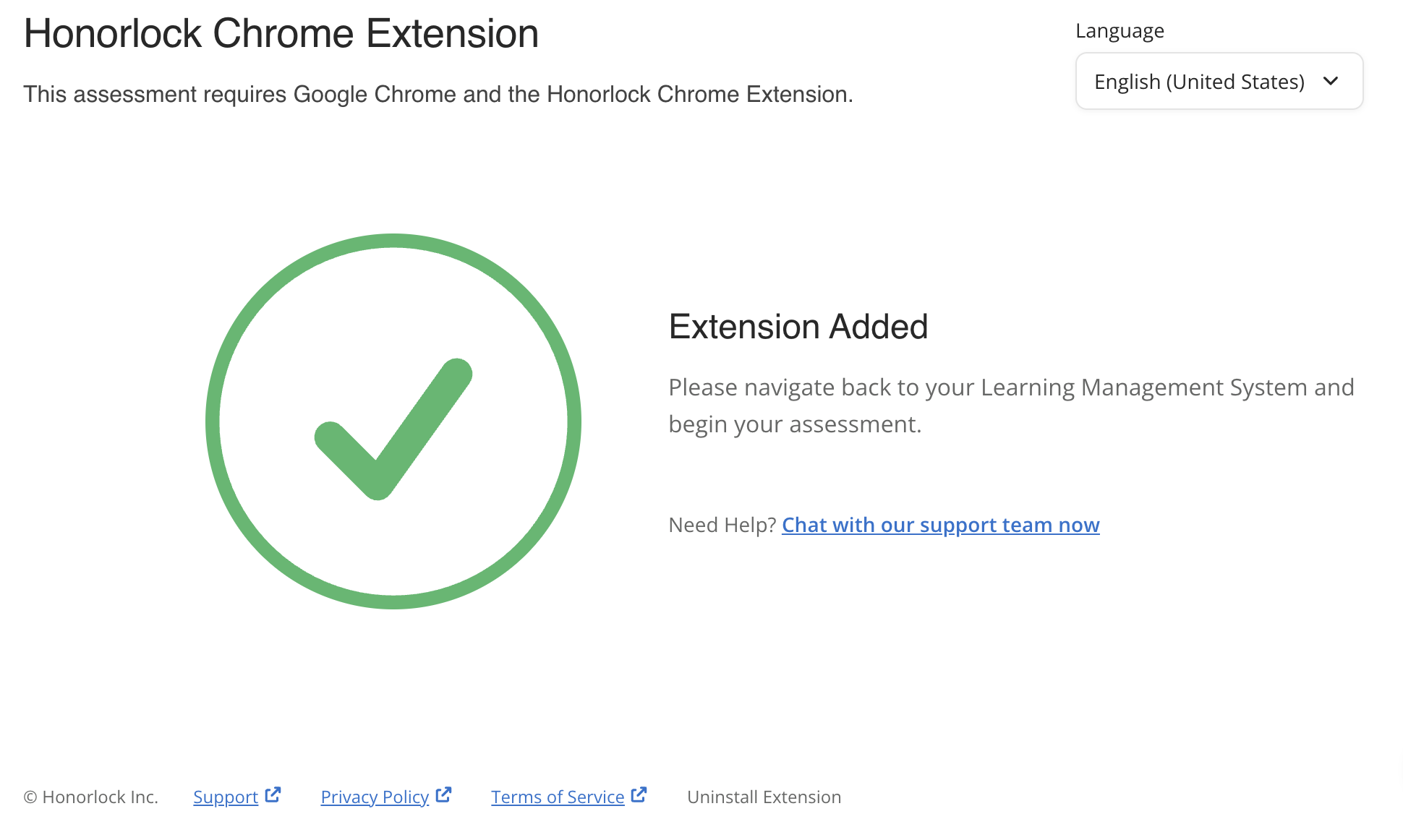
- Navigate back to Moodle and you will see confirmation that the extension was added.
- Scroll down to your assessment and click Continue.
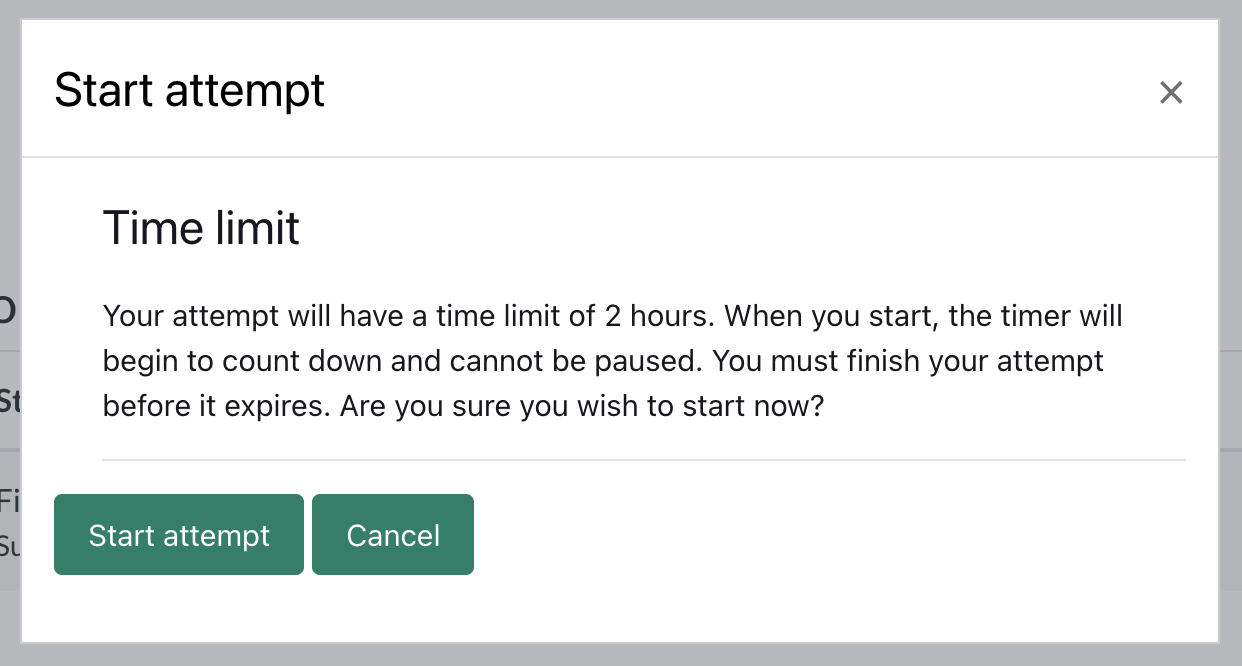
- Check off the two boxes and click Continue to System Check.
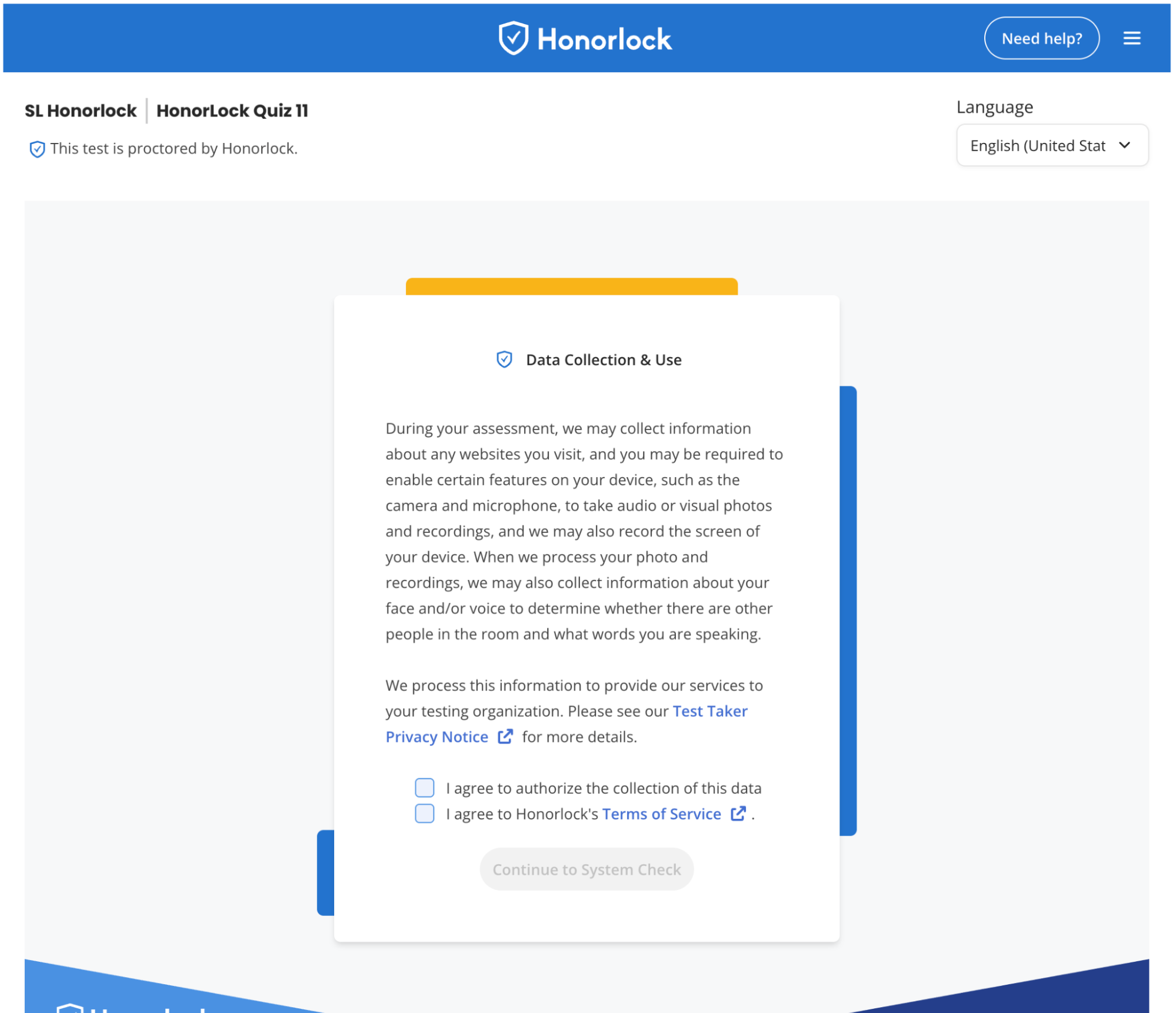
- In the next screen, you can run an optional system check to ensure your browser, operating system, and network status meets the requirements to start the exam. You will also be able to review:
- Your assessment guidelines as to what is allowed during your exam
- Allowed website/URL links you can visit during your exam
- Authentication settings enabled for your exam
- Click Begin Authentication to continue.
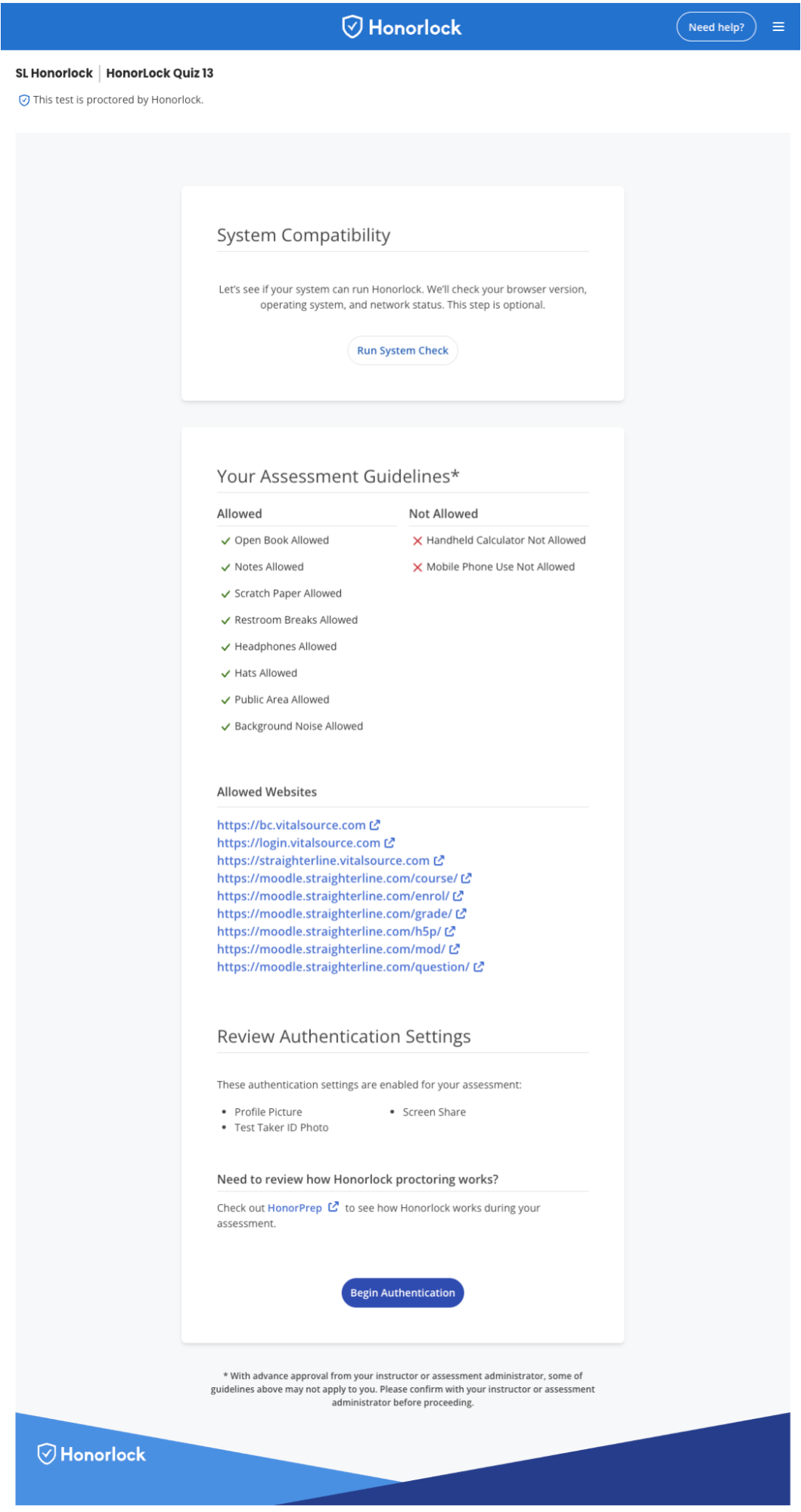
- You will be prompted to disconnect your second monitor before you can continue (if applicable).
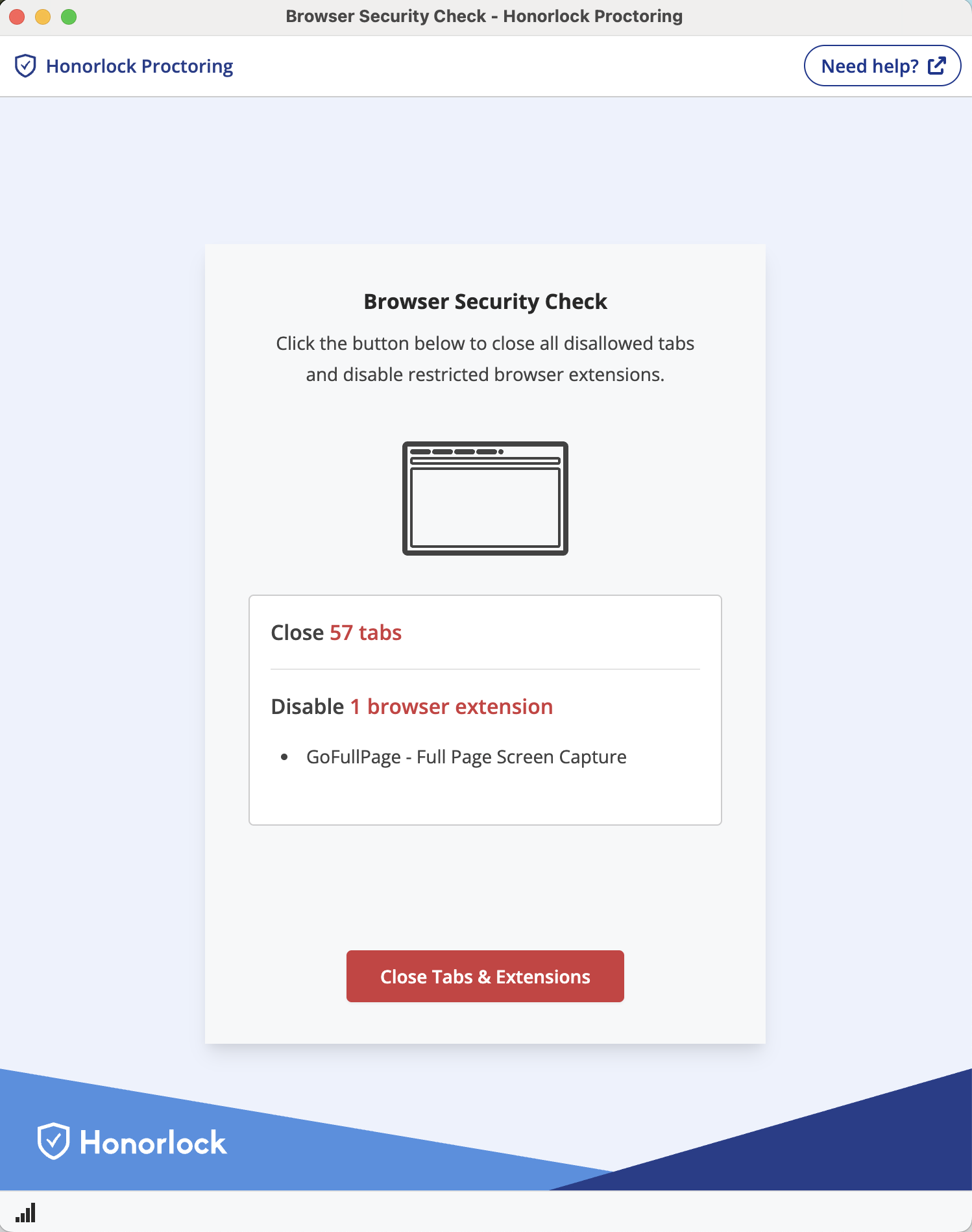
- You will be prompted to close all other tabs and disable any browser extensions that could be used to your advantage during your assessment (see screenshot below as an example). Click Close Tabs & Extensions.
- After taking these actions, you will proceed through the authentication process based on your exam's configurations. Depending on your exam configurations, this could include:
- Photo Capture
- ID Verification
- Room Scan
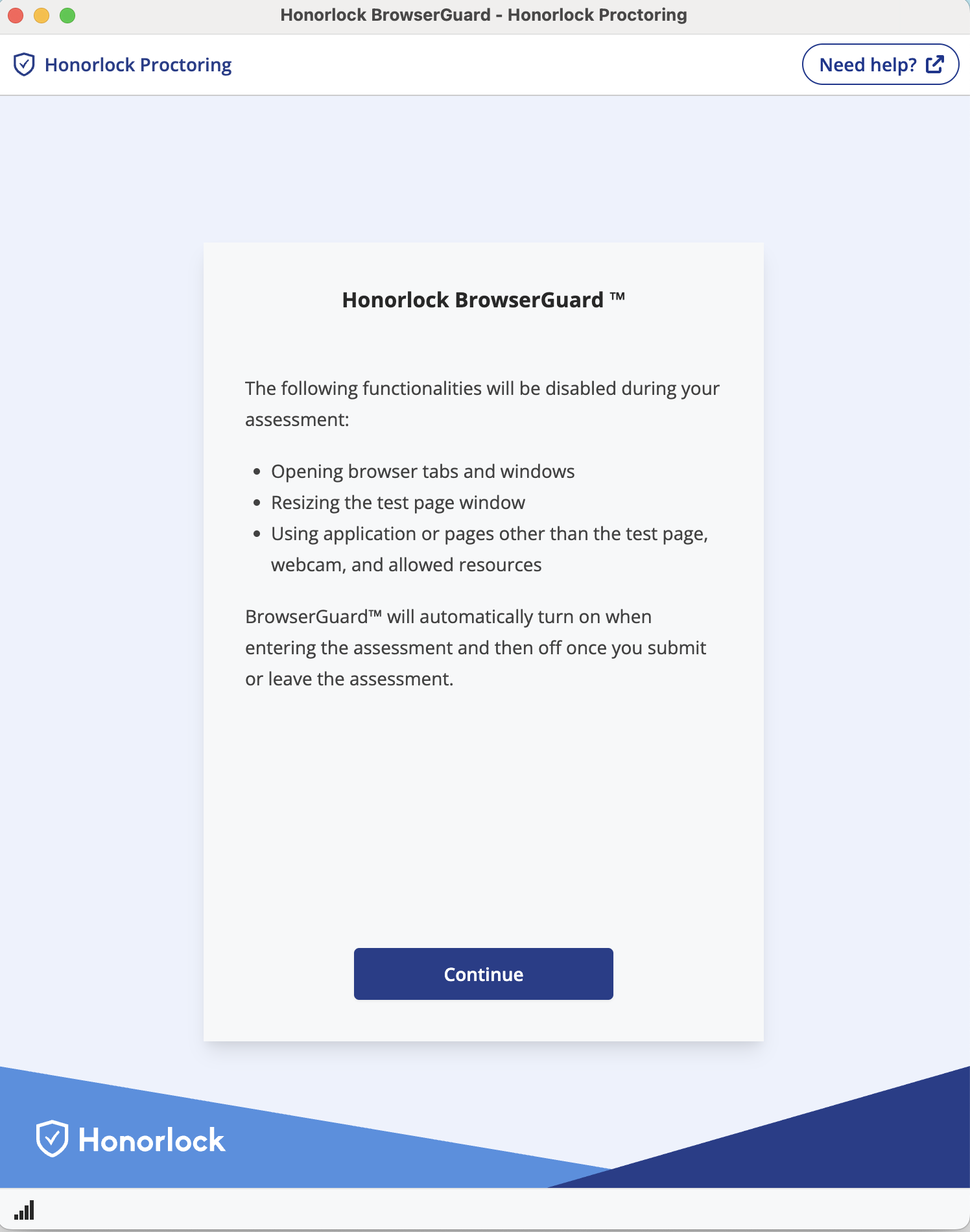
- Once complete, you'll see a notice about Honorlock's Browser Guard. Click Continue.
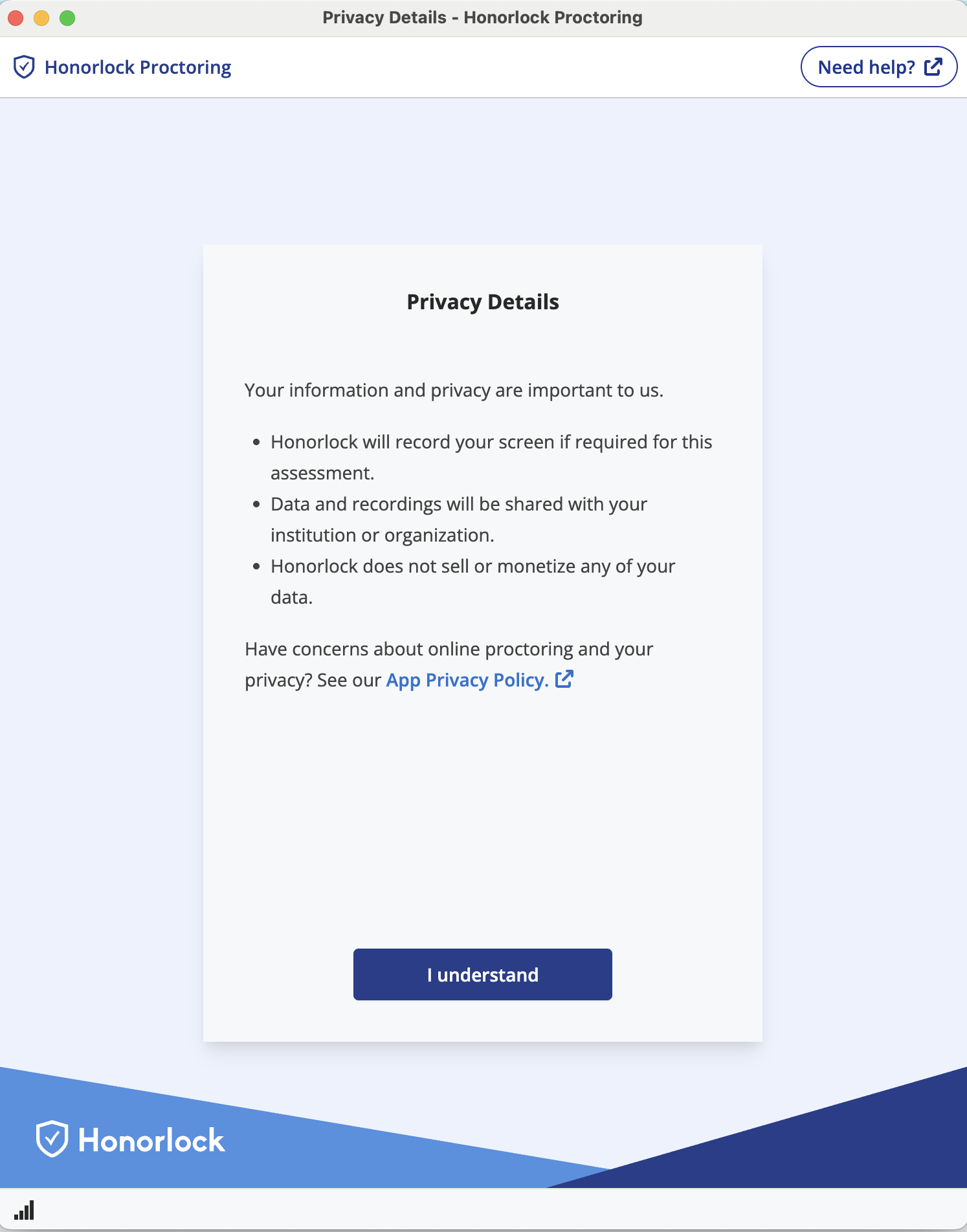
- You'll then see another notice about Honorlock's Privacy Details. Click I Understand.
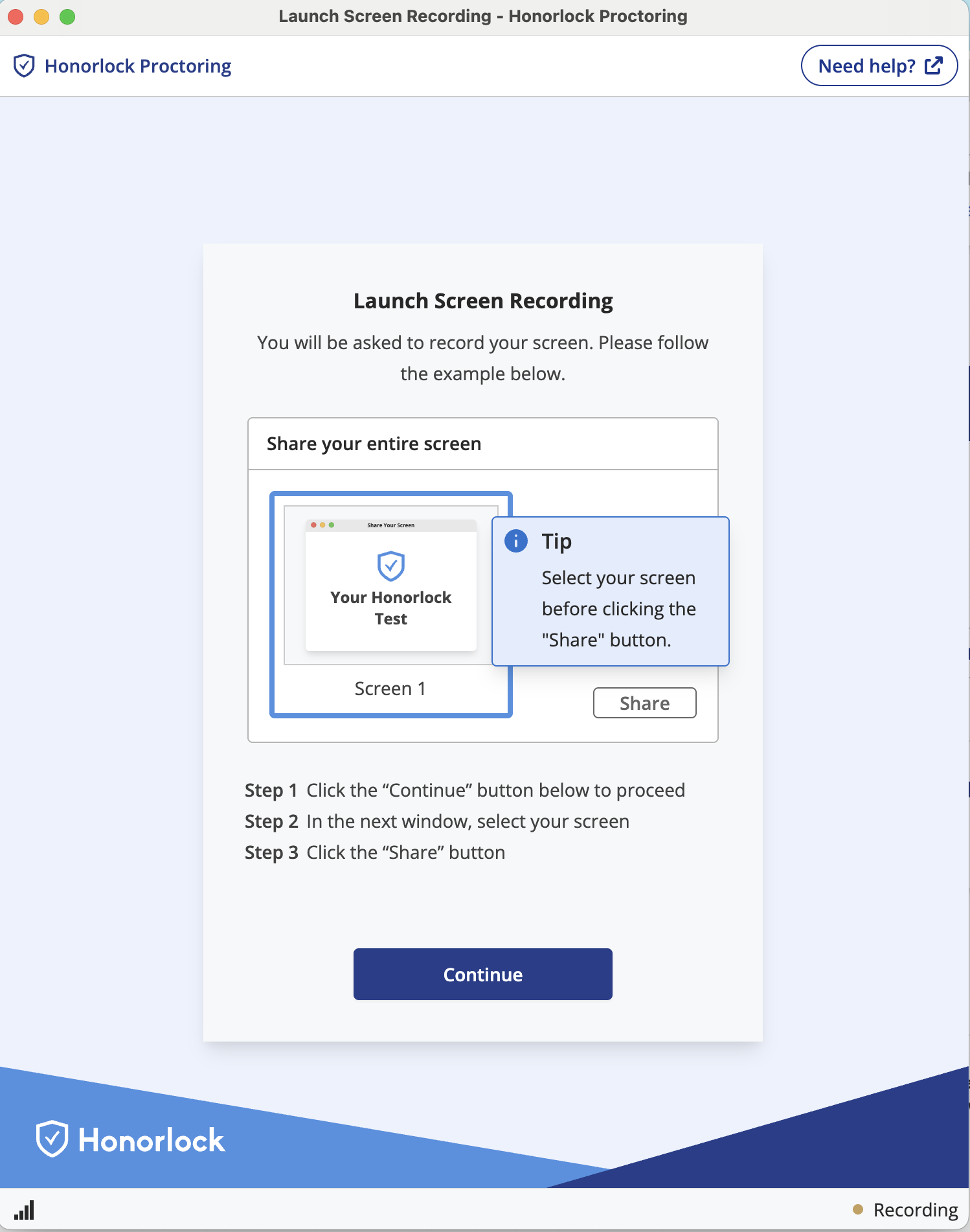
- You'll be asked to start sharing your screen for the duration of your exam. Click Continue and then share your screen.
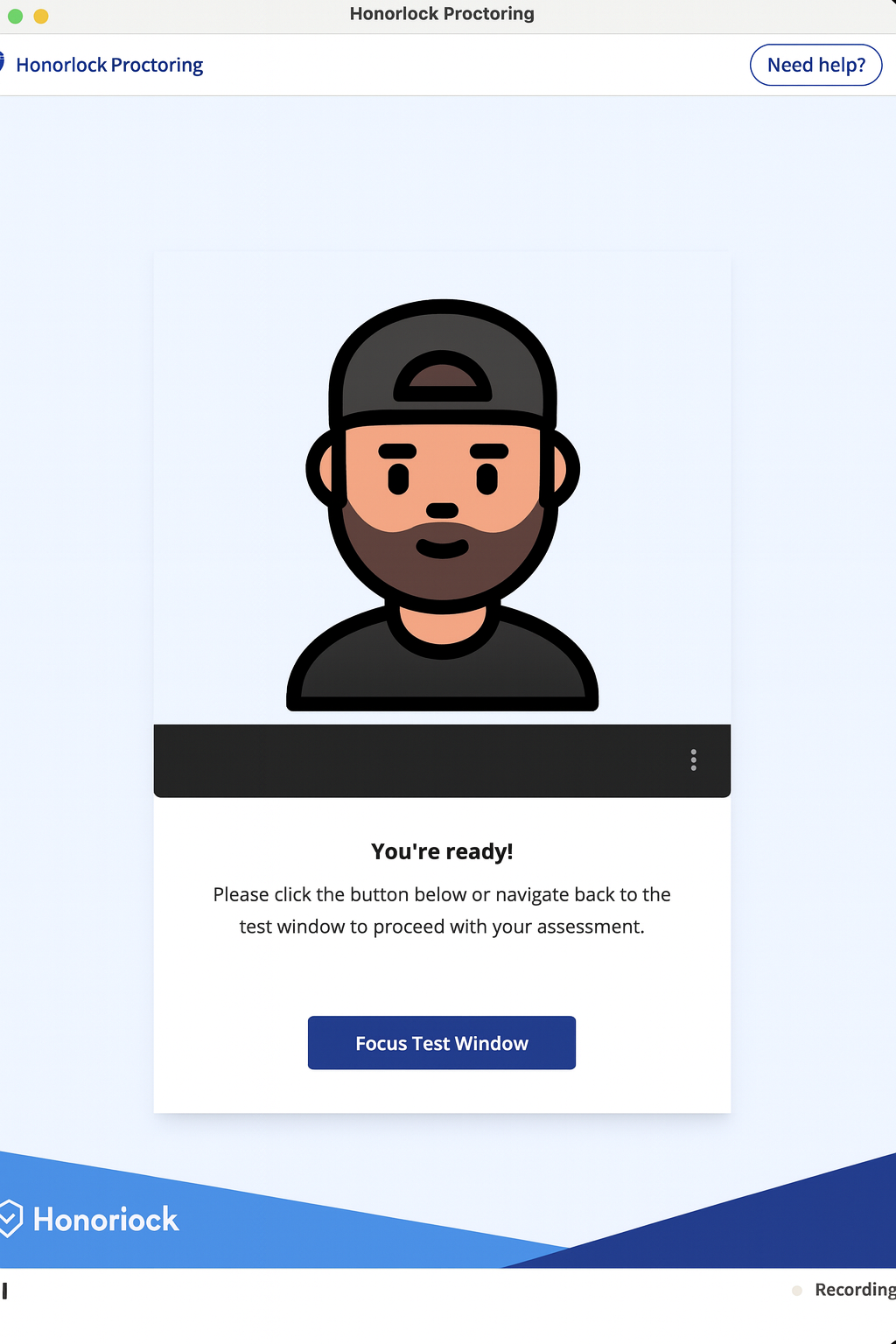
- You'll see the following screen to let you know that you're ready. Click Focus Test Window.
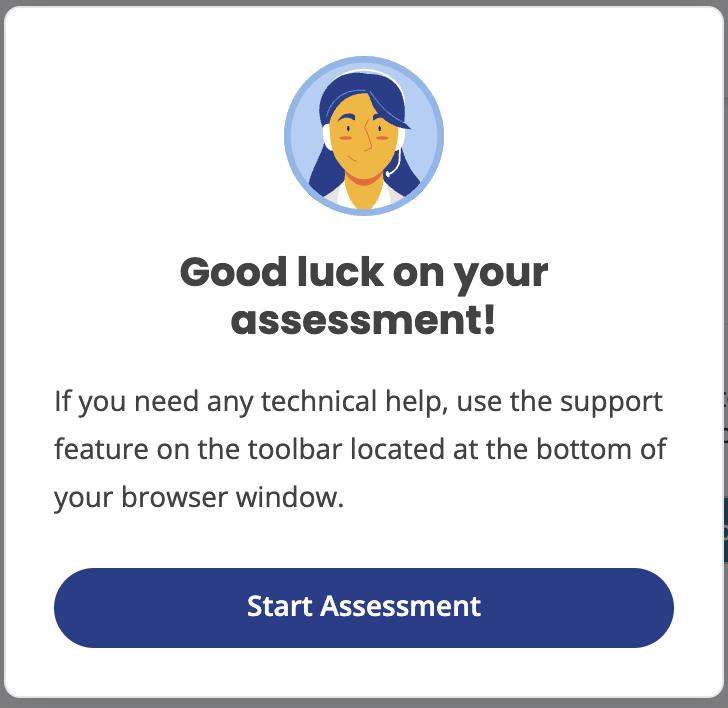
- After that, you'll be redirected to your exam with a small popup letting you know you're ready to start your assessment. Click Start Assessment and get started!
Important Notes
When you start your exam
- Your exam timer will not start until after you complete the authentication process and start your exam.
- You will not need a password to access your exam.
When you re-enter your exam
- You are allowed to navigate throughout your Moodle course during your open book exam. If you do this during the exam window, you may re-enter your exam but will need to go through the authentication process again. Keep this in mind as the authentication process could take a couple of minutes.
Important Tips
- Download the browser extension now so you're ready for your exam.
- Close all other programs before starting your exam.
- Ensure a strong internet connection for the duration of your exam.
- Run a system check before your exam to confirm that your device meets Honorlock's technical requirements.
Troubleshooting
If you encounter issues:
- You can click the Live Chat button in the bottom right corner to chat with a real person from Honorlock to help troubleshoot the issue.
-
Exams: How to Prepare for my Final Exam?
Final Benchmarks and Honorlock
All final cumulative Benchmark exams will require Honorlock, a browser-based examination integrity tool. Honorlock helps us protect the integrity and credibility of learning achievements by ensuring that all students complete assessments under the same secure, fair conditions—regardless of where or when they take their exams. Honorlock supports this commitment while respecting individual learning experience: exams remain open-book, students retain access to authorized course materials, and StraighterLine’s self-paced model provides continued flexibility.
What will students need to get started?- A laptop or desktop computer (tablets/mobile devices not supported)
- Chrome browser with Honorlock extension installed (You will be prompted to install the extension on your device when you first access an Honorlock exam)
- Functional webcam for identity verification
- Valid government-issued photo ID
- Single monitor only (external monitors must be disconnected)
- Stable internet connection
The exam timer begins only after authentication is complete. All final Benchmark exams remain open-book, and students may access authorized course materials during the exam. However, please note: the exam timer will count down as students search for answers in the open-book course/notes. The exam timer cannot be paused once the exam has started.
-
Exams: What are Assessments?
StraighterLine courses may include any combination of the assessment types described below. Review the descriptions to learn about each type, then review the Course Evaluation Criteria to understand how your learning will be measured in this course.
What are Benchmarks?
Benchmarks test your mastery of course concepts. You have 3 attempts, and your highest score counts. Note: Cumulative Benchmarks (final exams) only allow 1 attempt.
What are Capstones?
Capstones are project-based assessments that help you apply concepts to real-world scenarios. You have 2 attempts, and your highest score counts.
What are Checkpoints?
Checkpoints are quick knowledge checks on important course concepts. All are open-book, and most have 1-3 attempts.